Running Multiple Laravel Apps on Synology NAS with Docker
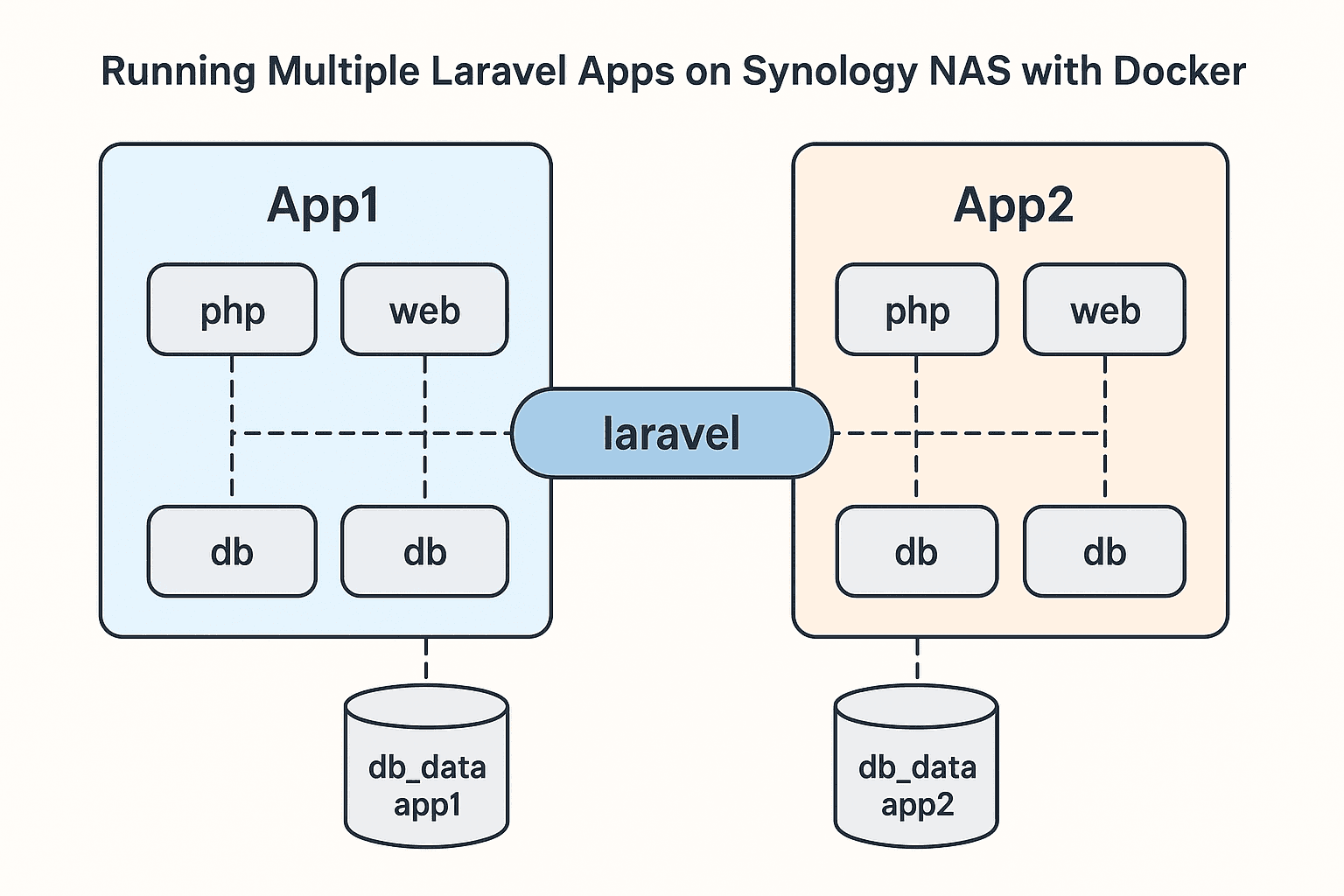
Docker makes running multiple applications on the same system simple and conflict-free. In this guide, we’ll walk through setting up multiple Laravel applications on a Synology NAS using Docker Compose with PHP-FPM, Nginx, and MySQL. We’ll cover everything from folder setup to common permission fixes.
Running Multiple Laravel Apps on Synology NAS with Docker
Prerequisites
Before starting, ensure you have:
Folder Structure
Organize your Laravel apps on the NAS to keep them isolated:
/volume1/docker/laravel_app1/
    app/          # Laravel project files
    docker-compose.yml
    nginx.conf

/volume1/docker/laravel_app2/
    app/
    docker-compose.yml
    nginx.conf
Each app should remain isolated to avoid port and database conflicts.
Docker Compose Setup
Here’s an example docker-compose.yml for App1:
version: '3.8'

services:
  php:
    image: php:8.2-fpm
    container_name: laravel_app1_php
    working_dir: /var/www
    volumes:
      - ./app:/var/www
    networks:
      - laravel

  web:
    image: nginx:latest
    container_name: laravel_app1_nginx
    ports:
      - "8081:80"
    volumes:
      - ./app:/var/www
      - ./nginx.conf:/etc/nginx/conf.d/default.conf
    depends_on:
      - php
    networks:
      - laravel

  db:
    image: mysql:8.0
    container_name: laravel_app1_db
    environment:
      MYSQL_ROOT_PASSWORD: root
      MYSQL_DATABASE: laravel_app1
      MYSQL_USER: laravel
      MYSQL_PASSWORD: secret
    ports:
      - "3307:3306"
    volumes:
      - db_data_app1:/var/lib/mysql
    networks:
      - laravel

networks:
  laravel:

volumes:
  db_data_app1:
Make sure each app uses unique ports to prevent conflicts.
Nginx Configuration
Here’s an example nginx.conf for App1:
server {
    listen 80;
    server_name localhost;

    root /var/www/public;
    index index.php index.html;

    location / {
        try_files $uri $uri/ /index.php?$query_string;
    }

    location ~ .php$ {
        fastcgi_pass php:9000; # Must match the PHP service name
        fastcgi_index index.php;
        include fastcgi_params;
        fastcgi_param SCRIPT_FILENAME $document_root$fastcgi_script_name;
    }
}
Installing Composer
Laravel requires Composer to manage dependencies. You have two main options:
Option 1: Install Composer manually inside the PHP container
Enter the PHP container:
sudo docker exec -it laravel_app1_php bashDownload and install Composer:
# Download installer
php -r "copy('https://getcomposer.org/installer', 'composer-setup.php');"

# Verify hash (optional but recommended)
php -r "if (hash_file('sha384', 'composer-setup.php') === file_get_contents('https://composer.github.io/installer.sig')) { echo 'Installer verified'; } else { echo 'Installer corrupt'; unlink('composer-setup.php'); } echo PHP_EOL;"

# Install globally
php composer-setup.php --install-dir=/usr/local/bin --filename=composer

# Remove installer
php -r "unlink('composer-setup.php');"
Verify installation:
composer --versionNow you can create a Laravel project:
composer create-project laravel/laravel .Option 2 (Recommended): Use a PHP image with Composer pre-installed
Instead of installing Composer manually every time, you can use the official Composer Docker image or build a custom PHP image:
Example Dockerfile for Laravel:
FROM php:8.2-fpm

# Install system dependencies
RUN apt-get update && apt-get install -y     git unzip libzip-dev zip     && docker-php-ext-install pdo_mysql

# Install Composer from official image
COPY --from=composer:latest /usr/bin/composer /usr/bin/composer
Build this image and use it in your docker-compose.yml:
php:
  build: .
  container_name: laravel_app1_php
  working_dir: /var/www
  volumes:
    - ./app:/var/www
  networks:
    - laravel
Using a prebuilt Composer image simplifies setup and keeps your containers clean.
Creating the Laravel Project
If the app/ folder is empty, you have two options:
Option 1: Create Laravel project directly on the NAS via the PHP container
sudo docker exec -it laravel_app1_php bash

# Install dependencies if needed
apt-get update
apt-get install -y unzip zip git
docker-php-ext-install zip

# Create Laravel project
composer create-project laravel/laravel .

# Fix permissions
chmod -R 775 storage bootstrap/cache
chown -R www-data:www-data storage bootstrap/cache
exit
Option 2: Copy an existing Laravel project into the `app/` folder.
Running the Apps
Start your containers:
sudo docker-compose up -dCheck logs for troubleshooting:
sudo docker logs -f laravel_app1_nginxDatabase Considerations
database/database.sqlite..env:DB_CONNECTION=mysql
DB_HOST=db
DB_PORT=3306
DB_DATABASE=laravel_app1
DB_USERNAME=laravel
DB_PASSWORD=secretTroubleshooting Common Issues
/var/www/public) or the app/ folder is empty.zip, unzip, and git are installed in the PHP container.sudo for Docker commands on Synology.Tips
app1.local, app2.local) instead of ports.storage and bootstrap/cache directories.Conclusion
With Docker on Synology NAS, running multiple Laravel apps locally is straightforward. Each app is isolated, preventing port or database conflicts, and your environment is ready for further extensions like Redis, queues, or worker containers.